Learn why your answering machine won’t play messages and how to fix it, including volume, settings and BT voicemail checks.
If you can’t play messages on your answering machine, follow these steps:
Check you have power
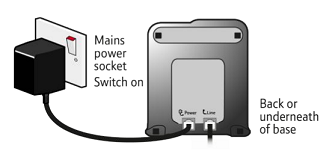
- If your phone needs a power supply, check that the power is on.
- Make sure the power adapter is plugged into a working mains power socket and into the phone.
If this doesn’t work: Try another socket or check if other devices have power.
Turn up the playback volume
- Check the "Loudspeaker/Playback volume" setting. If it is set too low, you may not hear a recorded message playback. There is usually a Vol+/Vol- button to adjust the "Loudspeaker/Playback" volume. If you need help, go to the user guide for your phone.
- Check that the answering machine is set to "Answer and Record" mode. If it is set as "Answer Only," the answering machine won't record any messages. For more information, please see the user guide.
If this doesn’t work: Check that your handset or speaker is not muted.
Make sure messages are being recorded
- Check that your answering machine is set to Answer and Record mode.
- If it is set to Answer Only, callers cannot leave messages.
If this doesn’t work: Go to your phone’s user guide to change the setting.
Check voicemail settings (1571 or Call Minder)
If you have BT Answer 1571, BT Call Minder or a similar service, make sure the answering machine takes the call before the network answering service.
If the network answering service takes the call first, you will need to change the "Answer delay" setting on your phone. This is the number of times it rings before the answering machine picks up.
For example, if you have BT 1571, make sure you don't set the answer delay to more than five rings. To learn how to change the setting, refer to the user guide.
BT Answer 1571 will answer the call after seven rings.
BT Call Minder answers after nil, four, seven or ten 10 rings (you can choose).
Details on these services are available from https://www.bt.com/help/ or by calling 0330 123 4150
Check other devices on the line
- If you have a fax machine connected to the same line as your answering machine, make sure the answering machine takes the call before the fax machine.
If the fax machine takes the call first, you will need to change the "Answer delay" settings. For instructions on how to do this, see the fax machine and phone user guide.